Send Message
Learn how to send messages with translation using VRCT.
Messages can be sent via text input or voice input, and will be translated and sent to VRChat chatbox.
Overview
VRCT offers multiple ways to send messages:
- Text Input: Type messages directly
- Voice Input: Speak into your microphone
- Both methods support real-time translation
Text Input Method
Basic Text Sending
- Locate the input field at the bottom of the main window
- Click inside the input field

- Type your message
- Press Enter key or click the Send Message button

Keyboard Shortcuts
- Enter: Send the message
- Shift + Enter: Insert a line break (multi-line message)
- Shift + Up Arrow: Recall the last sent message for editing
- Shift + Down Arrow: Navigate forward in message history (if available)
You can edit previously sent messages by pressing Shift + Up Arrow, making changes, and sending again.
With Translation
- Enable the Translation toggle
- Set your Your Language (the language you're typing in)
- Set Target Language (the language to translate to)
- Type your message in your language
- Press Enter to send
- Your message will be translated and sent to VRChat
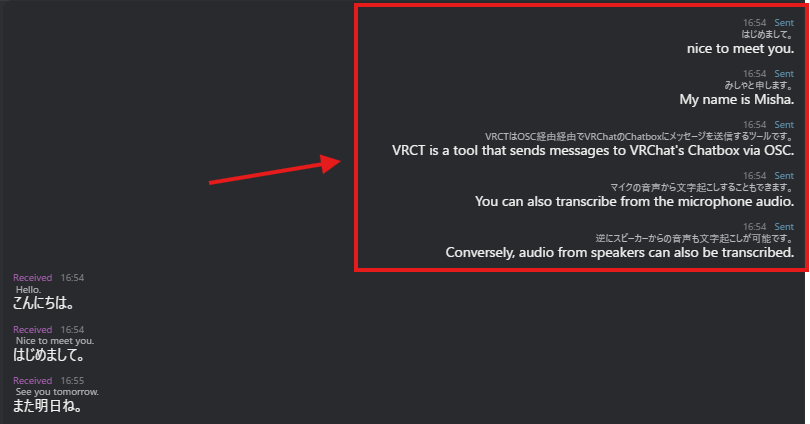
What You'll See:
- Original message (right side of chat history)
- Translated message (also displayed)
- Both original and translation sent to VRChat chatbox
Voice Input Method
Enable Voice2Chatbox
- Click the Voice2Chatbox toggle to enable it
- Ensure your microphone is selected in settings
- Speak into your microphone
- Your speech will be transcribed to text
- The message is automatically processed and sent
Before using voice input, configure your microphone in Device Settings.
Voice Input with Translation
- Enable Translation toggle
- Enable Voice2Chatbox toggle
- Set Your Language to your speaking language
- Set Target Language to desired translation language
- Speak into your microphone
- Your speech → transcribed → translated → sent to VRChat
Voice Input Tips
- Speak Clearly: Articulate words for better transcription
- Moderate Pace: Not too fast, not too slow
- Reduce Noise: Minimize background sounds
- Pause Between Sentences: Helps with punctuation and processing
For more details, see the Voice to Text Guide.
Translation Options
Multiple Target Languages
Send translations in multiple languages simultaneously:
- Click the [+] button next to Target Language
- Select additional languages (up to 3 total)
- Type or speak your message
- All translations will be sent together
For more details, see the Multiple Target Languages Guide.
Select Translation Engine
Choose the best translation engine for your needs:
- Click on the translation engine name below the target language
- Select from available engines (Google, DeepL, AI Translation, etc.)
- Your messages will use the selected engine
For more details, see the Translation Engines Guide.
Message Display
Chat History
After sending, messages appear in the chat history:
- Right side: Your sent messages
- Original text shown
- Translated text shown below
- Timestamp (if enabled)
VRChat Chatbox
Your translated message appears:
- In VRChat chatbox above your avatar
- Visible to nearby players
- Automatically disappears after a few seconds
Message Formatting
Multi-line Messages
Create multi-line messages:
- Type first line
- Press Shift + Enter to add line break
- Type next line
- Repeat as needed
- Press Enter to send
VRChat chatbox has limited character display. Very long messages may be truncated.
VRChat Integration
OSC Connection
Messages are sent to VRChat via OSC (Open Sound Control):
- Ensure VRChat OSC is enabled
- VRCT automatically connects
- Messages sent to chatbox in real-time
For OSC setup, see the OSC Integration Guide.
Character Limit
VRChat chatbox has a 144-character limit:
- VRCT automatically handles truncation
- Long messages may be cut off
- Prioritizes original text (You can also display only the translated text)
Best Practices
For Better Translations
- Use Simple Sentences: Easier to translate accurately
- Avoid Slang: May not translate well
- Choose Appropriate Engine: Different engines for different quality
For VRChat Communication
- Keep Messages Concise: Respect character limit
- Send One Thought at a Time: Easier to read
- Use Appropriate Language: Match the world's community
- Be Patient: Allow time for translation and sending
For Voice Input
- Speak Naturally: Natural speech works best
- Pause Between Messages: Allows processing time
- Adjust Microphone: Proper distance and volume
Troubleshooting
Message Not Sending
- Check if Translation toggle is on (if using translation)
- Verify VRChat OSC is enabled
- Ensure VRCT is connected to VRChat
- Check for error messages in VRCT
Translation Not Working
- Verify translation engine is selected
- Check internet connection (for cloud engines)
- Ensure languages are correctly set
- Try a different translation engine
Voice Input Not Working
- Check microphone is selected in settings
- Verify Voice2Chatbox toggle is enabled
- Test microphone in Windows settings
- Check microphone permissions
Message Not Appearing in VRChat
- Ensure VRChat chatbox is enabled
- Check OSC settings
- Restart both VRChat and VRCT
- Verify OSC port is correct (default 9000)
For more troubleshooting, see the FAQ.
Related Features
- Receive Message - Learn about receiving messages
- Voice to Text - Detailed voice input guide
- Real-time Translation - Translation feature overview
- OSC Integration - VRChat connection setup
- Multiple Target Languages - Send in multiple languages