OSC Integration
VRCT uses Open Sound Control (OSC) to communicate with VRChat, enabling features like sending messages to the in-game chatbox.
Overview
OSC (Open Sound Control) is a protocol for networking sound synthesizers, computers, and other multimedia devices. VRChat uses OSC to allow external applications like VRCT to interact with the game.
What OSC Enables
Through OSC integration, VRCT can:
- Send translated messages to VRChat chatbox
- Interact with VRChat parameters for mic mute status
VRChat OSC Setup
Enable OSC in VRChat
- Launch VRChat
- Open the Action Menu (R key on keyboard, or hold B on Quest controllers)
- Navigate to Options → OSC
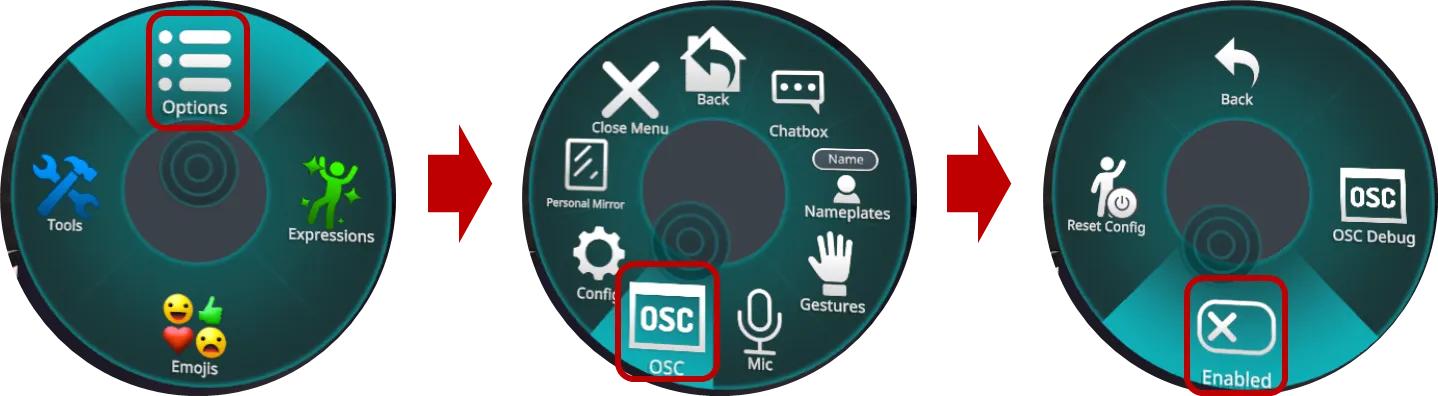
- Enable OSC
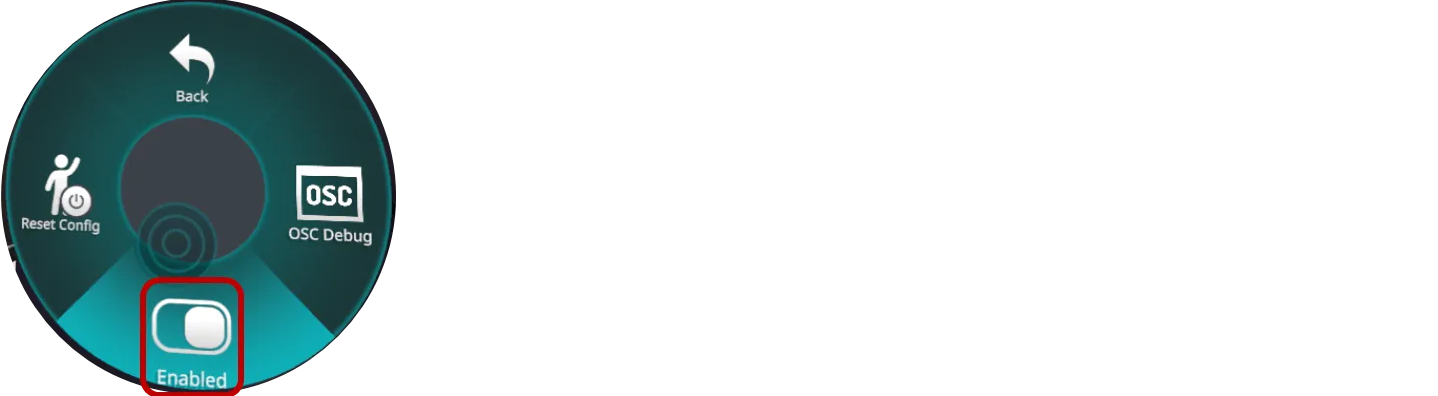
OSC settings persist between VRChat sessions, so you only need to enable it once.
Reset OSC Configuration
If you experience issues:
- In VRChat Action Menu, go to Options → OSC
- Click Reset Config
- Restart VRChat
- Re-enable OSC
VRCT OSC Configuration
VRCT is pre-configured to work with VRChat's default OSC settings.
Default Settings
- OSC IP Address: 127.0.0.1 (localhost)
- OSC Port: 9000 (VRChat default receive port)
- OSC Protocol: UDP
Based on standard usage, you typically do not need to change these settings.
Custom Configuration
If you need to change OSC settings:
- Open VRCT Config Window
- Navigate to the OSC or Advanced section
- Configure OSC parameters
- Save and restart VRCT
For detailed OSC configuration, see the Advanced Config Guide.
Troubleshooting
Messages Not Appearing in VRChat
-
Check VRChat OSC is Enabled
- Open Action Menu → Options → OSC
- Ensure OSC and Chatbox are enabled
-
Verify VRCT is Running
- VRCT must be running before or while VRChat is running
- Check VRCT is not showing any error messages
-
Check Firewall Settings
- Ensure Windows Firewall allows VRCT and VRChat to communicate
- Allow UDP traffic on port 9000
-
Restart Both Applications
- Close VRChat and VRCT
- Start VRChat first
- Then start VRCT
- Re-enable OSC in VRChat
-
Reset OSC Configuration
- In VRChat, reset OSC config
- Restart both applications
OSC Connection Issues
Verify Network Settings
- Check if antivirus/security software is blocking OSC
- Temporarily disable firewall for testing
Test OSC Connection
- Use OSC debugging tools to verify connectivity
- Check VRCT logs for OSC errors
Performance
OSC communication is very lightweight:
- Minimal CPU usage
- Low network bandwidth
- No impact on VRChat performance
Related Features
- Send Message - Learn how to send messages via OSC
- VRC Mute Sync - Synchronize mute status via OSC
- Advanced Settings - Configure OSC parameters