Overlay Mode (VR)
Overlay Mode allows you to display the VRCT interface directly in VR as an overlay, making it easy to view translations and chat history while playing VRChat in VR.
Overview
When using VRChat in VR, you can:
- View VRCT interface inside your VR headset
- Position and resize the overlay window
- Read translations without leaving VR
Single line Mode and Multiple lines Mode
- Single line Mode: Displays one line of text at a time for quick glances (only show received messages)
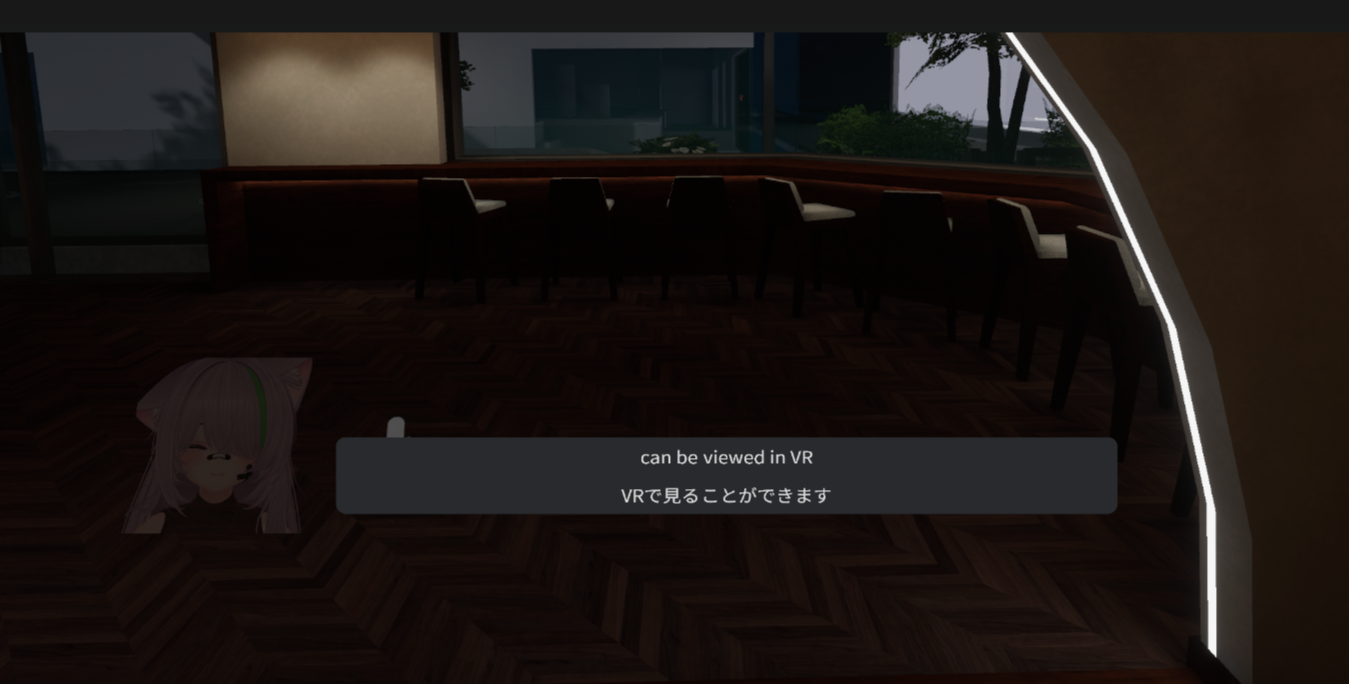
- Multiple lines Mode: Displays several lines of text for more context
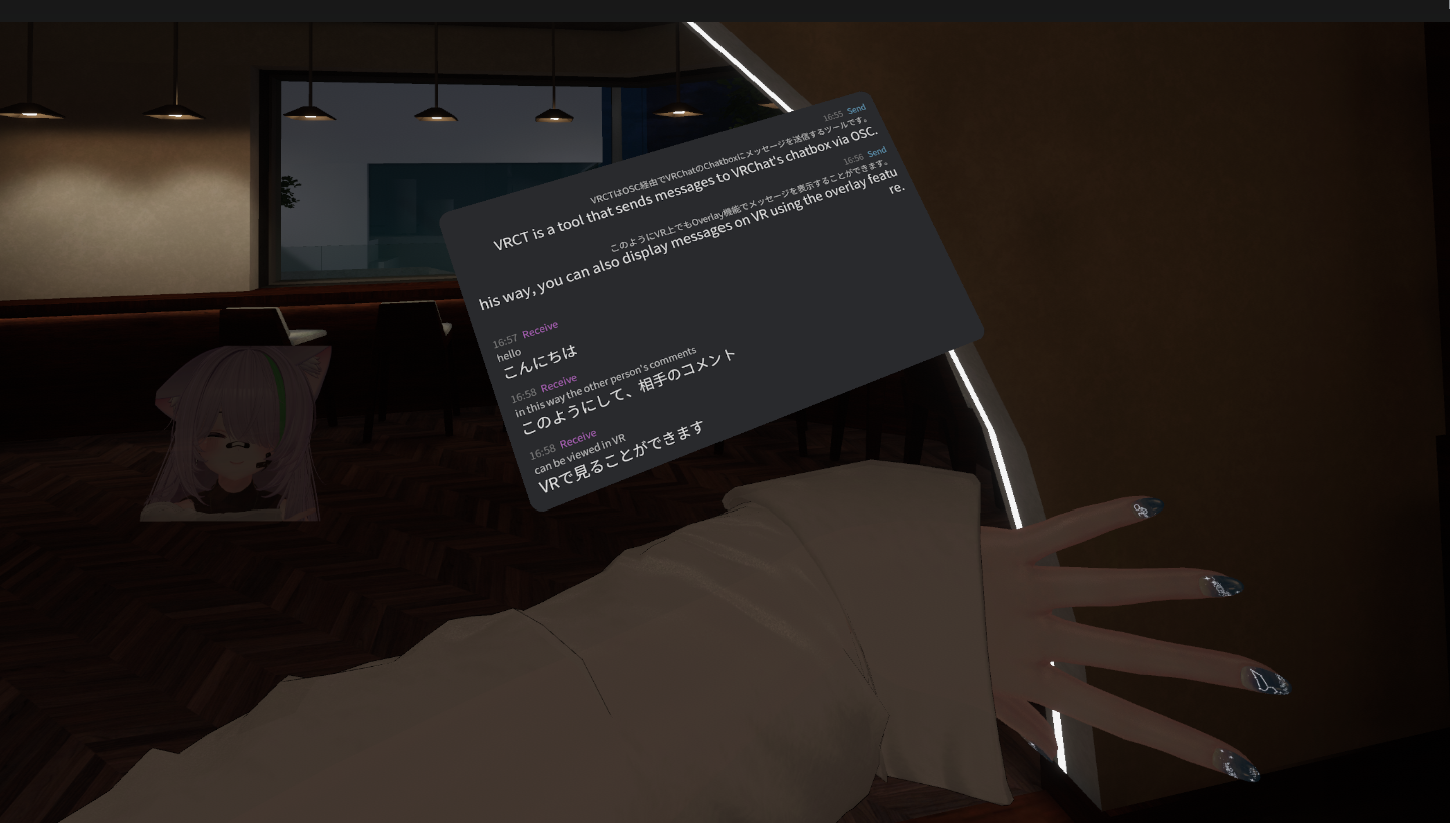
How to Enable
Enable Overlay
- In the Overlay Config Window, Single line or Multiple lines click the Enable toggle
- Click Send Sample Texts To Overlay button to test the overlay in VR
- Adjust position and settings as needed
Refer to the docs on VR Config Guide or VR Overlay Settings in Main Window for more details on accessing overlay settings.
Overlay Settings
Position and Size
Position:
- x, y, z coordinates to set overlay location in VR space
Rotation:
- Adjust pitch, yaw, roll to orient overlay
Tracking
Head-Locked (HMD):
- Overlay follows your head movement
- Always visible in your field of view
- Good for constant monitoring
Wrist-Locked (Left Hand or Right Hand):
- Overlay attached to your wrist
- Visible when you raise your hand
- Convenient for quick glances
Opacity
- Adjust transparency of the overlay
- Higher opacity: Easier to read, more obstructive
- Lower opacity: Less obstructive, harder to read
- Find the balance that works for you
UI Scaling
- Adjust size of overlay elements for readability
Display Duration
- Set how long overlay remains visible after interaction
Fadeout Duration
- Set time for overlay to fade out when not in use
- If set to 0, overlay stays visible unless you change it to a non-zero number
Using Overlay in VR
Reading Translations
- Enable Speaker2Log to transcribe others' voices
- View transcribed and translated text in the overlay
- Read while continuing to interact in VRChat
Sending Messages
- Enable Voice2Chatbox
- Speak into your microphone
- Message automatically sent to chatbox
VR Headset Compatibility
Tested Headsets
- Meta Quest 2
- Meta Quest 3
- Pico 4
Info
Overlay feature requires SteamVR or compatible VR runtime.
Performance Considerations
System Resources
Overlay mode requires additional resources:
- GPU rendering for VR overlay
- SteamVR overlay system
- May impact VRChat performance slightly
Best Practices
Positioning
- Test Different Positions: Find what works best for your play style
- Avoid Center View: Don't block important game elements
- Easy to Glance: Position where you can quickly check translations
Readability
- Sufficient Size: Make text large enough to read comfortably
- Proper Distance: Not too close (hard to focus) or too far (hard to read)
Workflow
- Enable When Needed: Turn on overlay for conversations
- Disable When Not: Turn off during activities or events
Troubleshooting
Overlay Not Appearing
- Ensure SteamVR is running
- Check if VR headset is properly connected
- Restart VRCT and SteamVR
- Verify overlay is enabled in settings
Overlay Not Visible in VRChat
- Check overlay distance and position settings
- Ensure opacity is high enough
- Try resetting overlay position
- Check SteamVR overlay permissions
Text Hard to Read
- Increase font size
- Adjust overlay distance (bring closer)
Related Features
- Main Window Overview - Learn about the main interface
- Speaker to Text - Transcribe voices in VR
- VR Settings - Configure VR overlay options
- Appearance Customization - Customize overlay appearance