Main Window Overview
Here is an overview of the VRCT main window and its features.
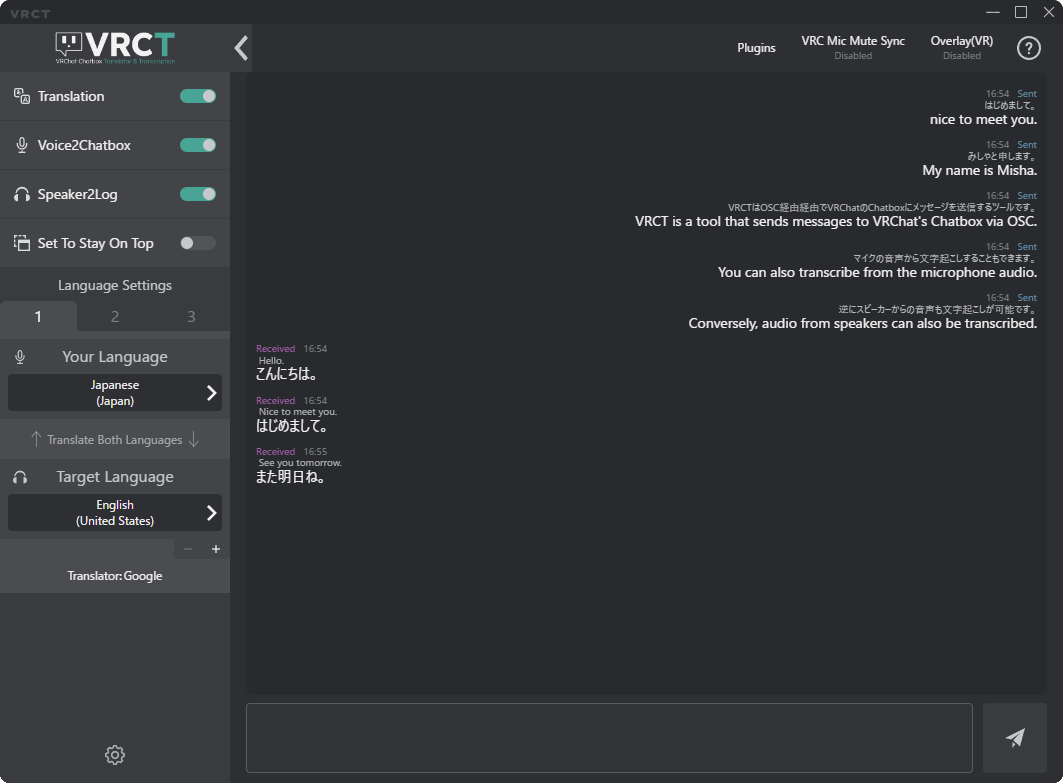
Translation Toggle Switch

When enabled, messages will be translated.
Transcription Controls

Controls the microphone and speaker transcription.
- Voice2Chatbox Toggle Switch: Toggles microphone transcription (Voice to Text).
- Speaker2Log Toggle Switch: Toggles speaker transcription (System Audio to Text).
Set To Stay On Top Toggle Switch

Keeps the VRCT main window on top of other windows when enabled.
Language Settings
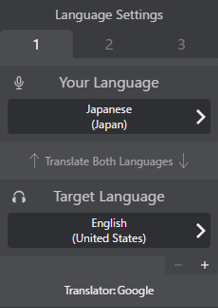
Displays the currently selected languages.
- Your Language: The language you are speaking or writing.
- Target Language: The language you want to translate to.
Preset Tab

You can set up to three language presets.
Preset 1, 2, 3: Click to switch between presets.
Your Language / Target Language
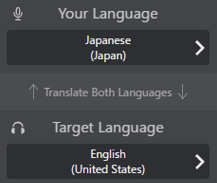
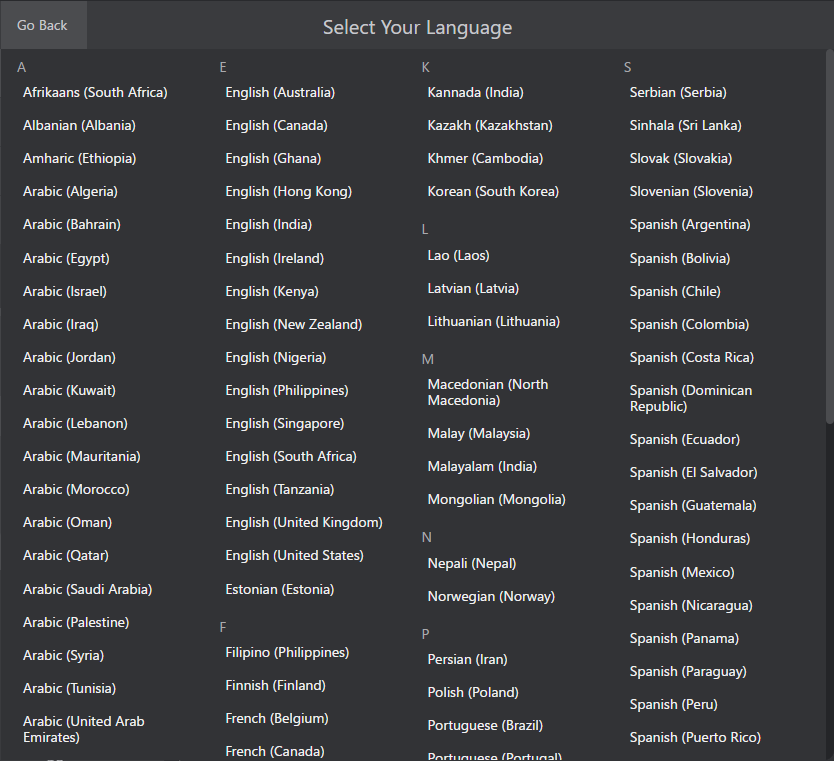
Click on a language area in Your Language / Target Language to display the language selection menu.
Please select the language you need for communication.
Swap Languages

Clicking this area allows you to quickly swap or change languages.
Additional Target Language
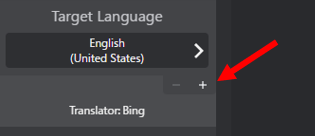
You can add an additional target language for translation.
- Click the [+] button to add another target language.
- Up to 3 target languages can be added.
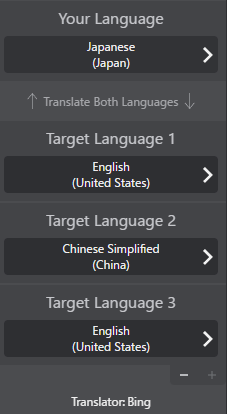
- Click the [-] button to remove the additional target language.
When multiple target languages are set, the translated messages will be displayed in the order of the target languages set.
Translation Engine Selection

You can select translation engines.
- Click the translation engine name area to display the selection menu.
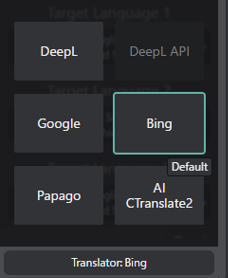
- Select the translation engine you want to use for that target language.
- Google, DeepL, Bing, Papago, etc.
- API-based engines
- AI-based engines
- others (continuously adding...)
- default engines are AI Translation(m2m100 model).
- Reference : https://huggingface.co/docs/transformers/model_doc/m2m_100
- You can select different AI models in the Config Window. Refer to the Translation Guide.
Chat History
Displays the conversation history.
- Left side: Messages received from others.
- Right side: Messages sent by you. Each message shows the original text and the translated text.
Input Field

Type your message here to send it via chat.
- Click the Right side Button to send the message.
- You can use the following keyboard shortcuts:
- Press Enter to send.
- Press Shift + Enter to insert a line break.
- Press Shift + Up Arrow to recall the last sent message for editing.
Configuration Button

Opens the Config Window where you can configure VRCT options.
For details, refer to the Config Window Guide.
Plugins Button

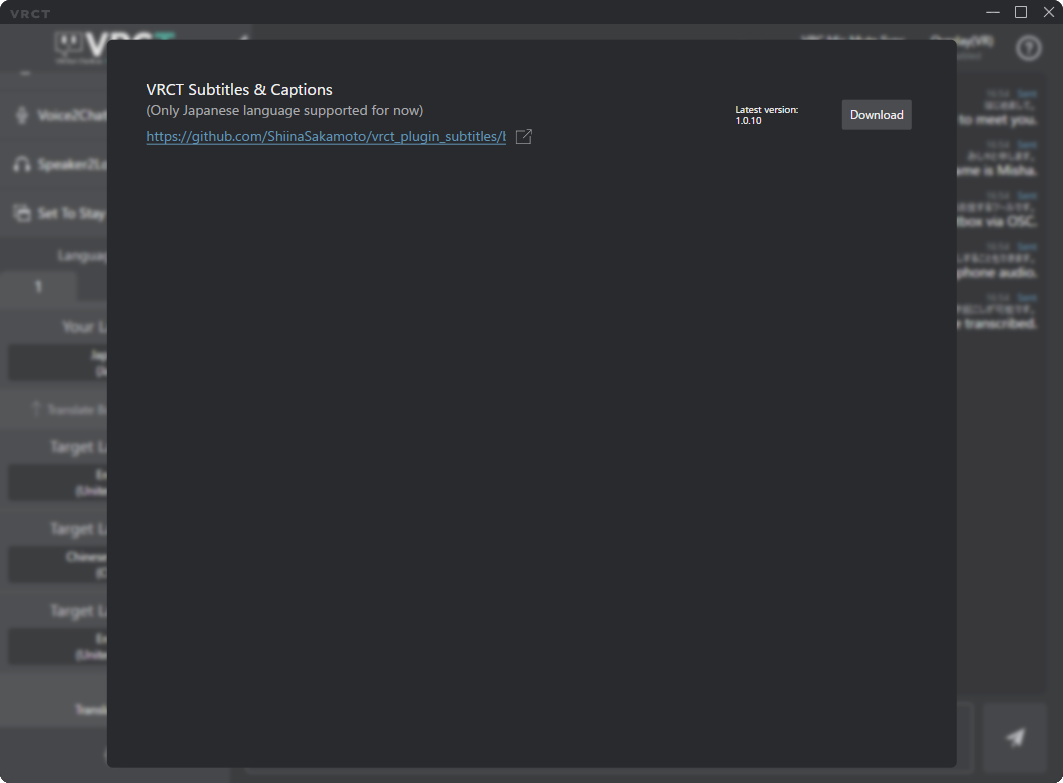
Opens the Plugins Config Window where you can manage VRCT plugins.
VRC Mute Sync Button

Opens the VRC Mute Sync Config Window.
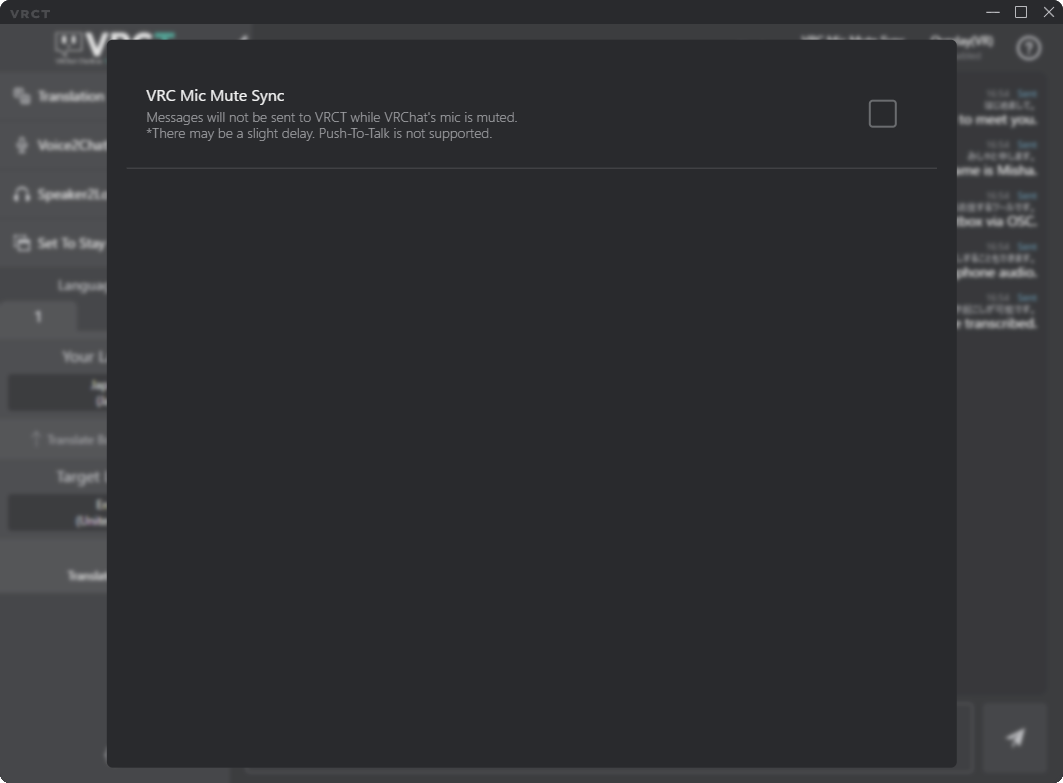
When enabled, VRCT will synchronize the mute status between VRChat and VRCT.
For details, refer to the VRC Mute Sync Guide.
Overlay(VR) Button

Opens the Overlay(VR) Config Window.
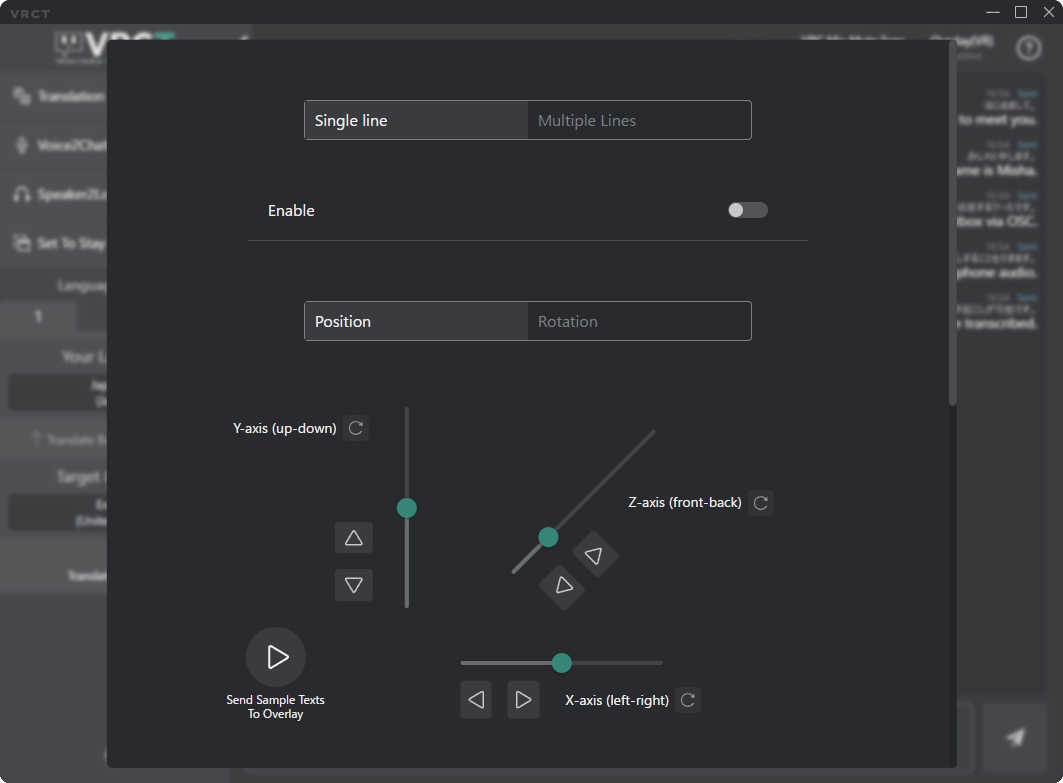
For details, refer to the Overlay(VR) Guide.
Help Button

Opens the help menu with links to documentation.
Message Log Font Size Slider

Opens the font size slider window.
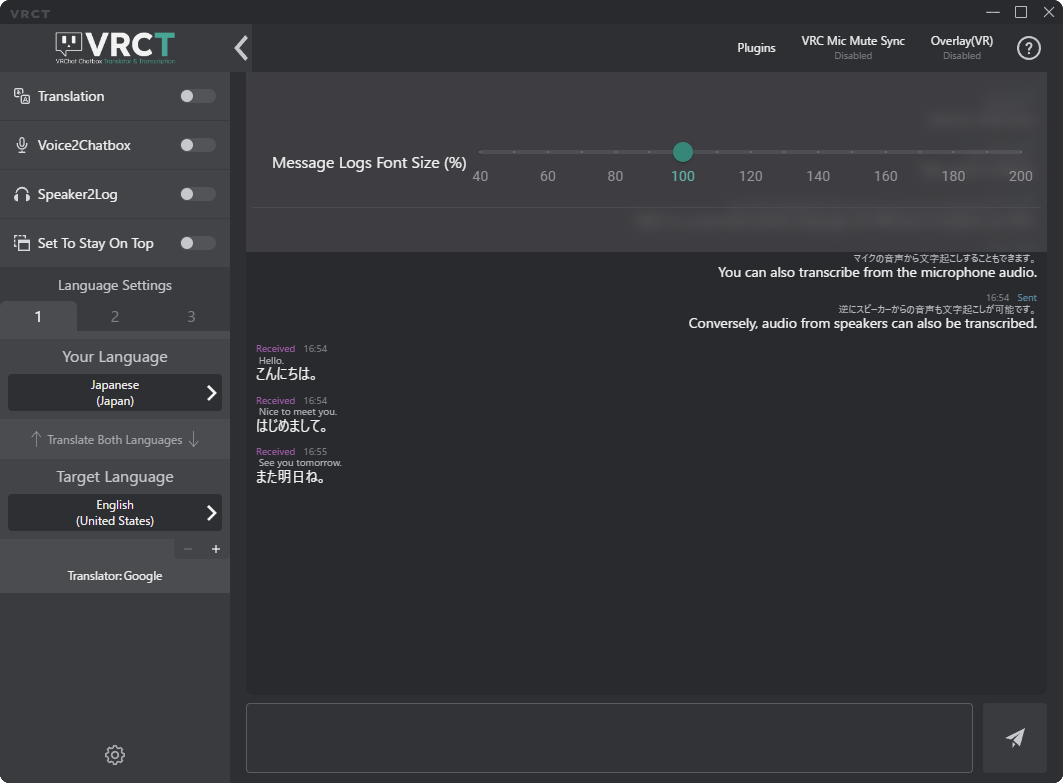
- Slider: Adjust the Message Log font size.
- Default size is 100.