Translation Tab
Customize your translation engine settings.
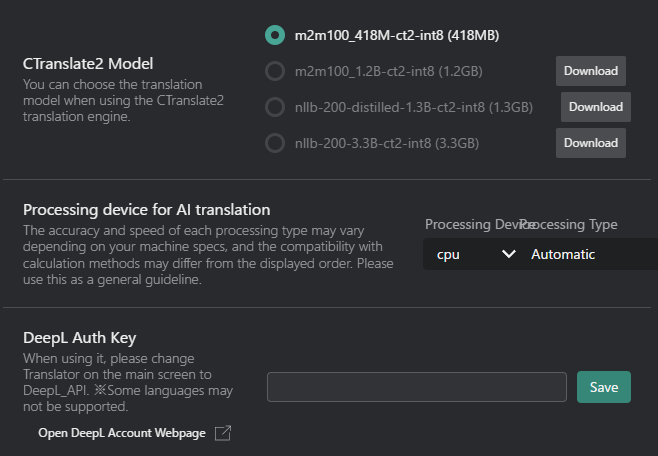
CTranslate2 Model and Settings
-
CTranslate2 Model: Select the local model for offline transcription/translation (if available).
Model Name Size Description m2m100_41M-ct2-int8 418MB Facebook's Multilingual Machine Translation model supporting 100 languages. m2m100_1.2B-ct2-int8 1.2GB Larger version of Facebook's M2M100 model with improved translation quality. nllb-200-distilled-1.3B-ct2-int8 1.3GB Meta's NLLB-200 distilled model supporting 200 languages with high accuracy. nllb-200-3.3B-ct2-int8 3.3GB Full version of Meta's NLLB-200 model for best translation quality. - Download Button: If you haven't downloaded the model yet, click this button to download it.
-
Processing device for AI translation: Select the processing device for translation tasks.
-
Processing Device:
- CPU: Uses the computer's main processor for translation tasks.
- GPU: Utilizes the graphics card for potentially faster processing (if supported).
tipIf you want to use the GPU with the CTranslate2 Model, you need to change VRCT to the CUDA version.
Refer to the Reinstall VRCT with CUDA version page for more details. -
Processing Type:
Type Accuracy Speed Description Automatic Auto Auto Automatically selects the best processing type based on your hardware capabilities. int8 Low Fast Uses 8-bit integer precision for faster processing with lower memory usage. int8_float16 Medium Fast Uses a combination of 8-bit integer and 16-bit floating-point precision for a balance between speed and accuracy. int8_bfloat16 Medium Fast Uses a combination of 8-bit integer and bfloat16 precision for efficient processing on compatible hardware. int8_float32 High Medium Uses a combination of 8-bit integer and 32-bit floating-point precision for higher accuracy. int16 Low Medium Uses 16-bit integer precision for lower memory usage. bfloat16 Medium Medium Uses bfloat16 precision for efficient processing on compatible hardware. float16 Medium Medium Uses 16-bit floating-point precision for a balance between speed and accuracy. float32 High Slow Uses 32-bit floating-point precision for the highest accuracy. tipThe optimal Processing Type varies depending on your hardware environment.
Please try several options to find what works best for you.Reference: https://opennmt.net/CTranslate2/quantization.html
-
APIs
Enter your API keys for services like DeepL or OpenAI if you are using their paid/pro features.
DeepL API
- DeepL API Key: Enter your API key for using DeepL translation services.
Plamo API
- Plamo API Key: Enter your API key for using Plamo translation services.
- Select Plamo Model: Choose the specific Plamo model for translation.
- Various models are available for different languages and purposes.
- Refer to the Plamo documentation for details on each model.
Gemini API
- Gemini API Key: Enter your API key for using Gemini translation services.
- Select Gemini Model: Choose the specific Gemini model for translation.
- Various models are available for different languages and purposes.
- Refer to the Gemini documentation for details on each model.
OpenAI API
- OpenAI API Key: Enter your API key for using OpenAI translation services.
- Select OpenAI Model: Choose the specific OpenAI model for translation.
- Various models are available for different languages and purposes.
- Refer to the OpenAI documentation for details on each model.
Groq API
- Groq API Key: Enter your API key for using Groq translation services.
- Select Groq Model: Choose the specific Groq model for translation.
- Various models are available for different languages and purposes.
- Refer to the Groq documentation for details on each model.
Open Router API
- Open Router API Key: Enter your API key for using Open Router translation services.
- Select Open Router Model: Choose the specific Open Router model for translation.
- Various models are available for different languages and purposes.
- Refer to the Open Router documentation for details on each model.
LM Studio API
- Check LM Studio Connection: Test the connection to the LM Studio server for local AI translation.
- Ensure that the LM Studio server is running and accessible.
- LM Studio URL: Specify the URL of your LM Studio server for local AI translation.
- Default:
http://127.0.0.1:1234/v1
- Default:
- Select LM Studio Model: Choose the specific LM Studio model for translation.
- Various models are available for different languages and purposes.
- Refer to the LM Studio documentation for details on each model.
Ollama API
- Check Ollama Connection: Test the connection to the Ollama server for local AI translation.
- Ensure that the Ollama server is running and accessible.
- Select Ollama Model: Specify the Ollama model for translation.
- Various models are available for different languages and purposes.
- Refer to the Ollama documentation for details on each model.