Transcription Tab
Customize the transcription settings for microphone and speaker audio in the Transcription Tab of the Config Window
Mic Transcription
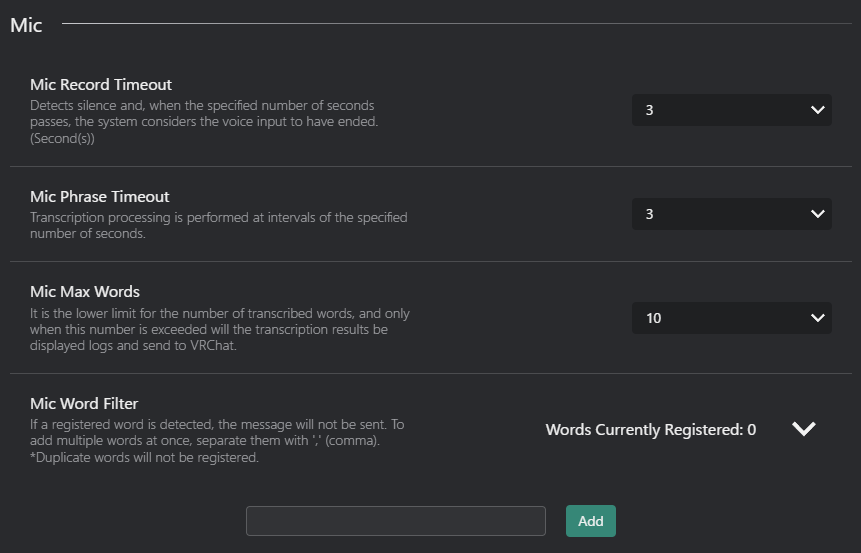
- Mic Record Timeout : Set the timeout duration for microphone recording.
- Detects silence and, when the specified number of seconds passes, the system considers the voice input to have ended. (Second(s))
- Set it to 0 to disable the recording timeout (unlimited recording). Phrase boundaries are still determined by silence detection and Mic Phrase Timeout.
- Mic Phrase Timeout : Set the timeout duration for microphone phrase detection.
- Transcription processing is performed at intervals of the specified number of seconds.
- Mic Max Words: Set the maximum number of words for microphone transcription.
- It is the lower limit for the number of transcribed words, and only when this number is exceeded will the transcription results be displayed logs and send to VRChat.
- Mic Word Filter: Enable or disable word filtering for microphone transcription.
- If a registered word is detected, the message will not be sent. To add multiple words at once, separate them with ',' (comma).\n*Duplicate words will not be registered.
Speaker Transcription
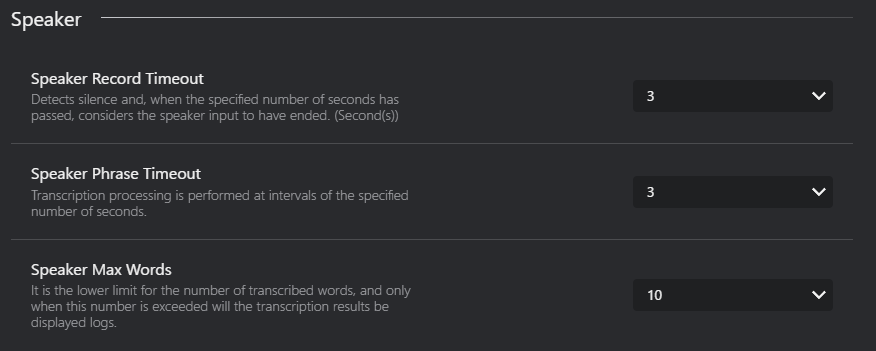
- Speaker Record Timeout : Set the timeout duration for speaker recording.
- Detects silence and, when the specified number of seconds has passed, considers the speaker input to have ended. (Second(s))
- Set it to 0 to disable the recording timeout (unlimited recording). Phrase boundaries are still determined by silence detection and Speaker Phrase Timeout.
- Speaker Phrase Timeout : Set the timeout duration for speaker phrase detection.
- Transcription processing is performed at intervals of the specified number of seconds.
- Speaker Max Words: Set the maximum number of words for speaker transcription.
- It is the lower limit for the number of transcribed words, and only when this number is exceeded will the transcription results be displayed logs.
Transcription Engines
-
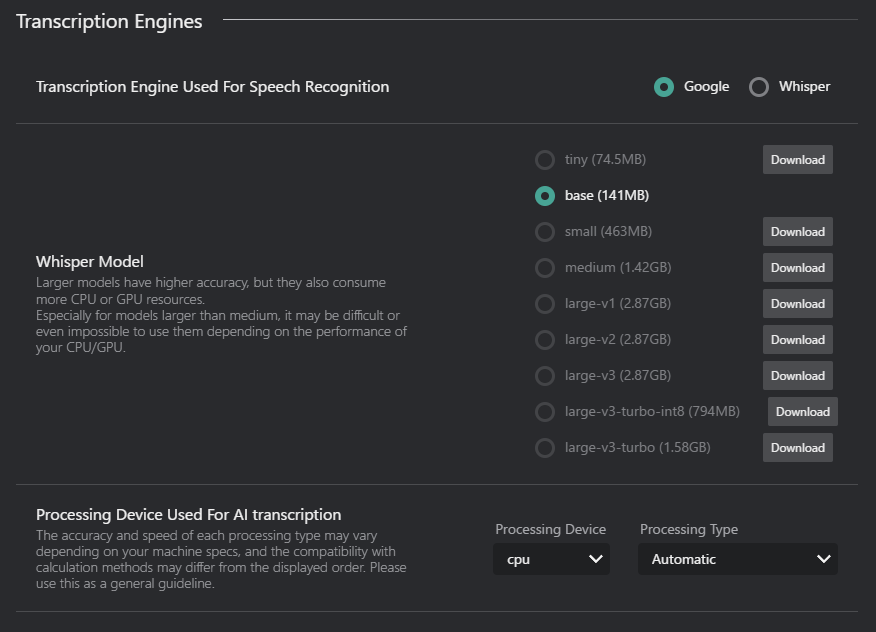
Transcription Engine Used For Speech Recognition: Select the engine used for speech-to-text (e.g., Google, Whisper).
-
Whisper Model: Choose the Whisper model for transcription (if Whisper is selected).
Model Name Size Description tiny 74.5 MB Fastest, lowest accuracy base 141 MB Fast, low accuracy small 463 MB Balanced speed and accuracy medium 1.42 GB Slower, higher accuracy large-v1 2.87 GB Slowest, highest accuracy large-v2 2.87 GB Slowest, highest accuracy large-v3 2.87 GB Slowest, highest accuracy large-v3-turbo-int8 794MB Slower, higher accuracy, optimized for performance large-v3-turbo 1.58GB Slowest, highest accuracy, optimized for performance - Download Button: If you haven't downloaded the selected Whisper model yet, click this button to download it.
-
Processing Device Used For AI transcription: Select the processing device for transcription tasks.
-
Processing Device:
- CPU: Use the computer's CPU for transcription processing.
- GPU: Use the computer's GPU for transcription processing (if available).
tipIf you want to use the GPU with the CTranslate2 Model, you need to change VRCT to the CUDA version.
Refer to the Reinstall VRCT with CUDA version page for more details. -
Processing Type:
Type Accuracy Speed Description Automatic Auto Auto Automatically selects the best processing type based on your hardware capabilities. int8 Low Fast Uses 8-bit integer precision for faster processing with lower memory usage. int8_float16 Medium Fast Uses a combination of 8-bit integer and 16-bit floating-point precision for a balance between speed and accuracy. int8_bfloat16 Medium Fast Uses a combination of 8-bit integer and bfloat16 precision for efficient processing on compatible hardware. int8_float32 High Medium Uses a combination of 8-bit integer and 32-bit floating-point precision for higher accuracy. int16 Low Medium Uses 16-bit integer precision for lower memory usage. bfloat16 Medium Medium Uses bfloat16 precision for efficient processing on compatible hardware. float16 Medium Medium Uses 16-bit floating-point precision for a balance between speed and accuracy. float32 High Slow Uses 32-bit floating-point precision for the highest accuracy. tipThe optimal Processing Type varies depending on your hardware environment.
Please try several options to find what works best for you.Reference: https://opennmt.net/CTranslate2/quantization.html
-
Additional Settings(Whisper Model)
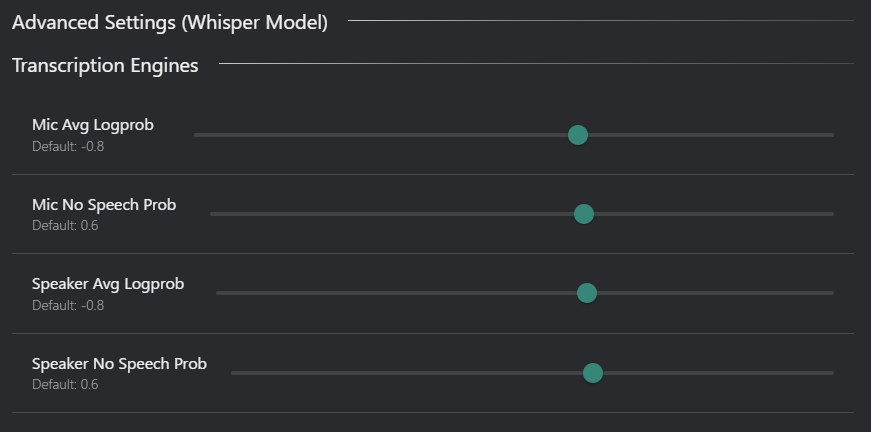
- Mic Avg Logprob: Set the average log probability threshold for microphone transcription.
- Mic No Speech prob: Set the no speech threshold for microphone transcription.
- Speaker Avg Logprob: Set the average log probability threshold for speaker transcription.
- Speaker No Speech prob: Set the no speech threshold for speaker transcription.
Avg Logprob
The average log-probability of all generated tokens in a segment.
Higher values (closer to 0) indicate higher confidence.
Lower values (e.g., below –1.0) suggest low confidence or possible misrecognition.
No Speech Prob
The probability that the input audio contains no speech.
Values close to 1.0 indicate silence or background noise.
This parameter is typically used to filter out false detections during quiet periods.