Receive Message
Learn how to receive and translate messages from other players in VRChat using VRCT's speaker transcription feature.
Overview
VRCT can capture audio from your speakers and:
- Transcribe the audio to text
- Translate the transcribed text
- Display in chat history for you to read
This allows you to "read" what others are saying through voice chat, even in different languages.
Enable Speaker Transcription
Toggle Speaker2Log
- In the main window, locate the Speaker2Log toggle switch
- Click to enable speaker transcription
- Ensure your speaker/audio device is correctly selected in settings
Before enabling, make sure the correct speaker/audio output device is selected in Device Config.
Configuration
Select Audio Output Device
- Open the Config Window (click gear icon)
- Navigate to Device Tab
- Select the audio output device VRChat is using
- Save settings
Select the same device that plays VRChat voice chat audio.
For detailed device configuration, see the Device Config Guide.
Configure Transcription
- Open the Config Window
- Navigate to Transcription Tab
- Configure speaker transcription engine
- Adjust language settings
- Save changes
For detailed transcription settings, see the Transcription Config Guide.
Receiving Messages
Without Translation
- Enable Speaker2Log toggle
- When someone speaks in VRChat voice chat
- VRCT transcribes their voice to text
- Transcribed text appears in chat history (left side)
With Translation
- Enable both Translation and Speaker2Log toggles
- Set expected source language (language they're speaking)
- Set your preferred target language (your language)
- When someone speaks:
- Audio is transcribed to text
- Text is automatically translated
- Both original and translation appear in chat history
Message Display
Chat History Layout
Received messages appear on the left side of chat history:
- Original Text: Transcribed speech in original language
- Translated Text: Translation in your language
- Timestamp: When the message was received (if enabled)
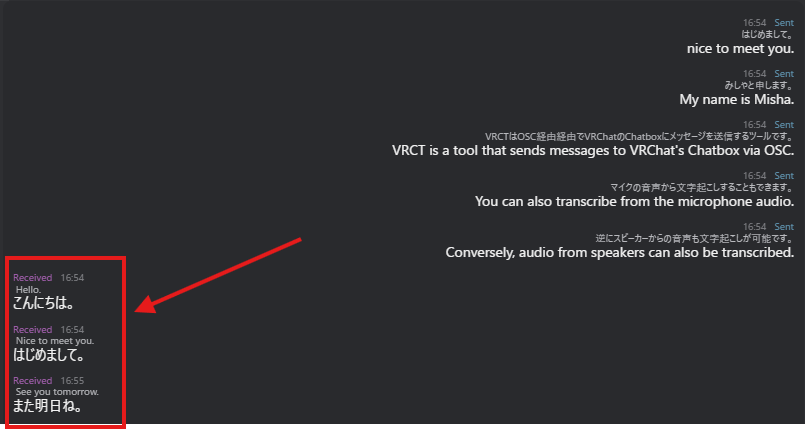
Reading Messages
- Messages appear in real-time as others speak
- Scroll to view older messages
Manual Language Selection
For better accuracy, manually set the expected source language:
- Know which language the person is speaking
- Set that as the source language in VRCT
- More accurate transcription and translation
Multi-Speaker Scenarios
Multiple People Speaking
When multiple people are talking:
- select multiple target languages if needed
- VRCT transcribes all audio from the speaker device (when audio is available for the selected languages)
- May mix transcriptions together
- Difficult to separate different speakers
- Best when one person speaks at a time
Simultaneous Speech
If multiple people speak simultaneously:
- Transcription accuracy decreases
- Mixed or garbled text may result
- Translation may be unreliable
- Wait for clear audio for best results
Important Warnings
Device Change Warning
DO NOT change the speaker device in Windows while Speaker2Log is active.
If you need to change the speaker device:
- Disable Speaker2Log in VRCT first
- Change the speaker device in Windows
- Update the device in VRCT settings
- Re-enable Speaker2Log
Changing devices while active may cause VRCT to freeze or crash.
Privacy Considerations
Speaker transcription captures ALL audio from the selected device:
- VRChat voice chat
- Music or videos playing
- Other application sounds
- Desktop notifications
Use responsibly and ethically:
- Respect others' privacy
- Don't share private conversations
- Follow VRChat community guidelines
- Use for accessibility and communication assistance only
Use Cases
Accessibility
- For players with hearing difficulties
- Read voice chat as text
- Don't miss important conversations
- Participate fully in VRChat communities
Cross-Language Communication
- Understand players speaking different languages
- Bridge language barriers in international worlds
- Communicate with global VRChat community
- Make friends across language boundaries
Record Keeping
- Keep written logs of voice conversations
- Review important information later
- Remember what was discussed
- Create conversation archives
Best Practices
For Better Transcription
- Good Audio Quality: Ensure clear VRChat voice
- Appropriate Volume: Not too loud, not too quiet
- Reduce Background Noise: Minimize other application sounds
- Correct Language Setting: Set expected source language
For Better Translation
- Select Appropriate Engine: Choose engine good at the language pair
- Context Awareness: Understand conversation context
For VRChat Etiquette
- Use Discreetly: Don't announce you're transcribing
- Respect Privacy: Don't share transcripts without permission
- Help Others: Share translations to help communication
Troubleshooting
No Transcription Appearing
- Verify Speaker2Log toggle is enabled
- Check correct audio device is selected
- Ensure VRChat audio is playing through that device
- Test audio output in Windows
- Check microphone isn't capturing instead
Poor Transcription Quality
- Increase VRChat voice volume
- Reduce other application audio
- Ensure correct source language is set
- Try different transcription engine
- Check audio device quality and drivers
Translation Not Accurate
- Verify correct source and target languages
- Try different translation engine
- Check if transcription is accurate first
- Consider context and slang usage
- Manual translation for important messages
VRCT Freezing
- Disable Speaker2Log before changing audio devices
- Check system resources (CPU/GPU/RAM)
- Close resource-intensive applications
- Restart VRCT if frozen
- Update VRCT to latest version
Can't Hear VRChat Audio
- Verify audio device isn't muted
- Check Windows volume mixer
- Ensure VRChat is outputting to correct device
- Test audio with other applications
Performance Optimization
System Resources
Speaker transcription is resource-intensive:
- Continuous audio processing
- Real-time transcription
- Translation processing
- More demanding than microphone transcription
Optimization Tips
- Use Lighter Models: Select faster transcription engines
- Reduce Other Apps: Close unnecessary applications
- Disable When Not Needed: Turn off when not actively using
- Optimize Settings: Balance quality vs performance
Privacy & Ethics
Ethical Use
- Respect others' privacy and consent
- Use for legitimate communication purposes
- Don't record or share without permission
- Follow VRChat Terms of Service
Data Handling
- Transcriptions stored locally in VRCT
- Cloud engines may send audio to external servers
- Choose local engines for privacy
Legal Considerations
- Check local laws regarding recording conversations
- Some regions require consent for recording
- VRCT transcription may be subject to these laws
- Use responsibly and legally
Related Features
- Send Message - Learn about sending messages
- Speaker to Text - Detailed speaker transcription guide
- Real-time Translation - Translation feature overview
- Device Config - Configure audio devices
- Transcription Config - Configure transcription engine