VR UI (Beta)
Since v3.6.0, VRCT has a VR UI that you can operate from inside VR. A launcher appears on your wrist, and you can open windows for the log, language selection, and VR settings. You can turn Translation, Microphone (Voice2Chatbox), Listen (Speaker2Log), and Chat Transcribe on and off without taking off your headset.
The VR UI is in beta. Its layout and behavior may change in future releases.
The VR UI is separate from the subtitle overlays described in the Overlay Mode guide. You can use either one, or both.
Requirements
- An active VR session (SteamVR or a compatible OpenVR runtime)
- Show the VR UI turned on in the VR Tab of the Config Window
Turning the VR UI On
- Open the Config Window and go to the VR tab.
- In VR UI (Beta), turn on Show the VR UI.
To hide it again, turn this option off.
The Launcher
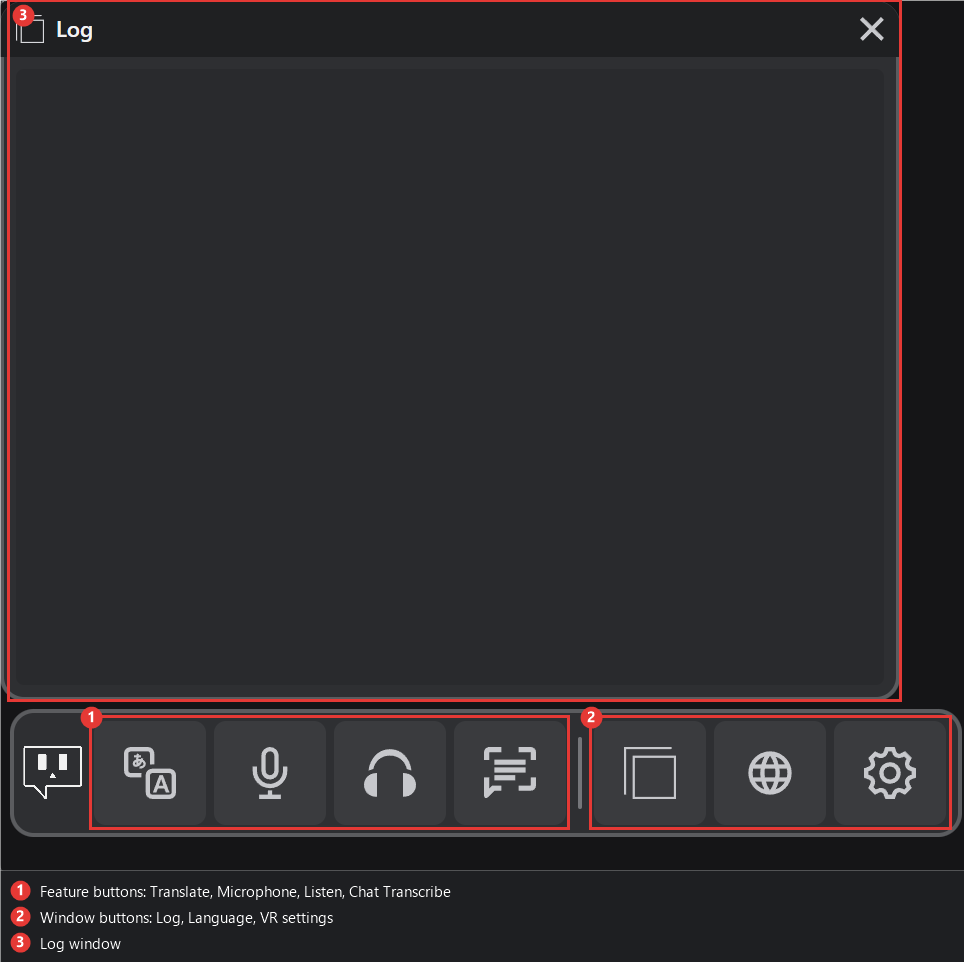
The launcher is a small strip on your left wrist by default.
- Buttons: Turn features on and off. The buttons are Translate, Microphone, Listen, and Chat Transcribe. Hover over a button to see its name and current state when button tooltips are on.
- Windows: Open the Log, Language, and VR settings windows.
If you lose the launcher, open the VR tab in the Config Window and press Reset the launcher position and size. The launcher returns to your left wrist at its default position and size.
Launcher Options
These options are in the VR settings window inside VR.
- Launcher hand: Choose the wrist that holds the launcher. Press the launcher with the laser from your other hand.
- Show only when looking at the wrist: The launcher appears only when you turn your wrist toward your face.
- Button tooltips: Show the name and state of a button while you point at it.
Floating Windows
Each window can be moved and resized with your controller.
- Move: Grip the window and move it.
- Push or pull: Move the window closer or farther away.
- Resize: Scale the window up or down. The log window can also be resized by its corner.
- Anchor: Pin a window to the world, your left or right hand, or your head.
- Lock: Lock a window so it cannot be grabbed and moved. Unlock it to move it again.
- Recall: If a window is out of view, recall it. Recall moves the log window to a world anchor.
Log Window
- Text size: Change the text size within the range 14 to 28. Translated text changes size with it.
- Opacity: Each press changes the opacity in this order: 100%, 80%, 60%, 40%, then back to 100%.
- Subtitle overlays: The subtitle overlays are a separate feature. See Overlay Mode.
Language Window
Use the Language window to change your language and recipient languages from VR.
- Switch between presets, swap your language with the first recipient language, and add or remove recipient languages (1 to 3).
- Changes take a moment to apply. Stay on the window until the change finishes.
VR Settings Window
The VR settings window gives you quick access to settings you change often, such as:
- Mic and speaker sensitivity
- Speaker phrase timing
- Subtitle overlay options
- Volume check
Some settings are unavailable while the window is open or when the required device or model is not ready. Check your settings on the PC in that case.
Translation and Transcription While Settings Are Open
While the VR settings window is open, VRCT pauses translation and transcription. They resume when you close the window.
Troubleshooting
- The launcher does not appear: Check that the VR UI is turned on in the VR tab, and that SteamVR is running.
- The launcher is in the wrong place: Use Reset the launcher position and size in the VR tab.
- A window is out of view: Use Recall on the window, or reset the launcher position.
- A button does not respond: The VR controls are locked while the Config Window is open. Close the Config Window to use them. Wait for a change to finish before you press the button again.