Device Tab
Customize your audio input and output devices.
The tab is split into a Mic section and a Speaker section.
Mic
Select the microphone for your voice input.

- Auto Select: Automatically selects the default system microphone.
- Host/Driver: Manually choose a specific microphone from the list.
- Host: The audio host (e.g., MME, WASAPI, DirectSound).
- Device: The specific microphone device available under the selected host.
Mic Sensitivity Settings
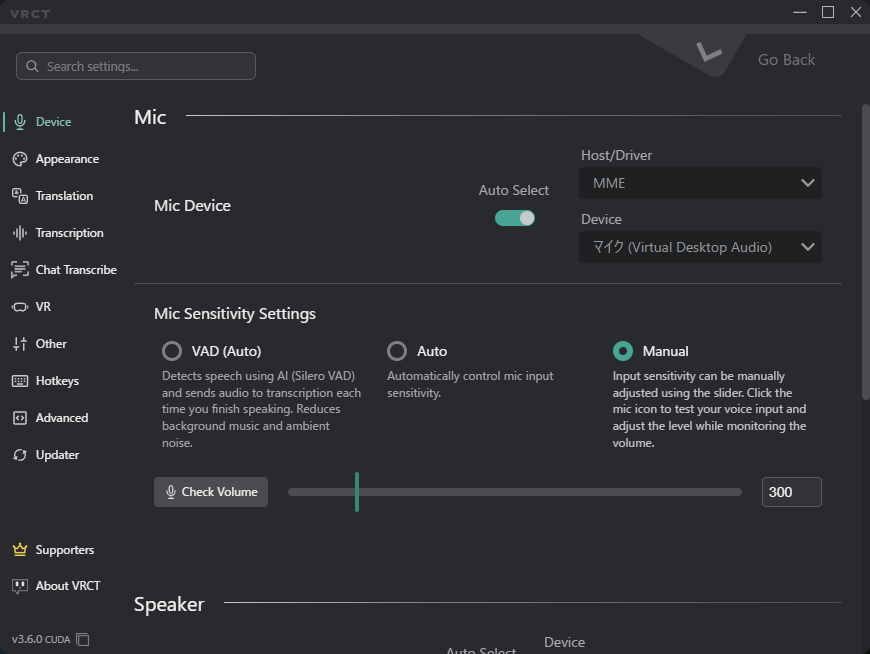
Choose how VRCT decides when your voice is speech. Select one of the three options:
- VAD (Auto): Uses an AI voice activity detector (Silero VAD) to find speech. Audio is sent to transcription each time you finish speaking. This helps reduce background music and ambient noise.
- The sensitivity slider is disabled in this mode.
- Auto: Automatically controls the mic input sensitivity.
- The sensitivity slider is disabled in this mode.
- Manual: Set the sensitivity yourself with the slider.
- Check Volume: Click the mic icon to test your voice and watch the level while you adjust the slider.
- Volume Slider: Manually adjust the mic sensitivity level.
tip
Start with VAD (Auto) if your mic picks up game or music audio. Switch to Manual if speech is cut off too early or missed.
Speaker
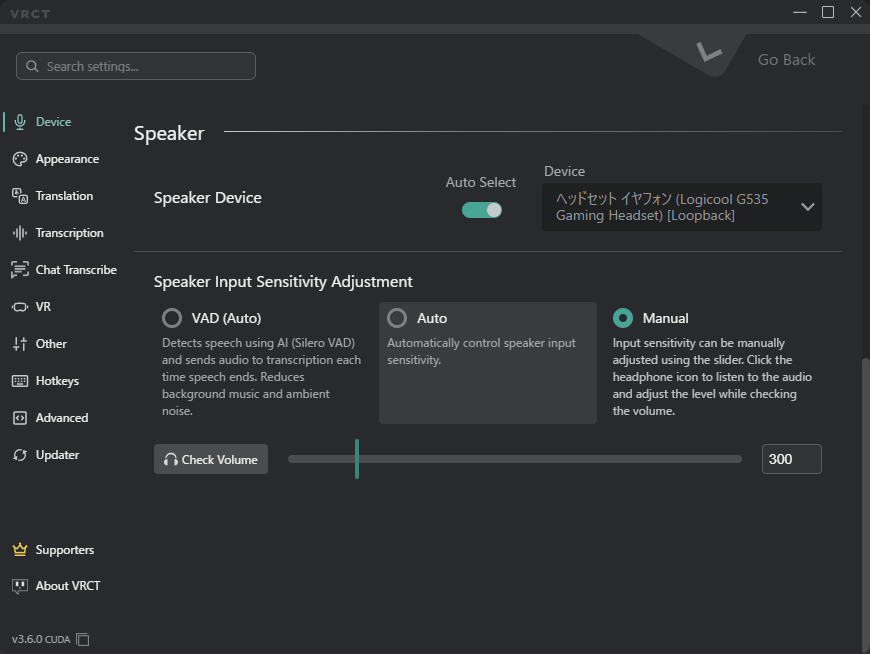
Select the speaker or headphones for receiving audio to be translated.
- Auto Select: Automatically switches to the output device that is actually playing sound (since v3.5.0). You no longer need to reselect the speaker device when the output of a game or call changes.
- Device: The specific speaker device available under the selected host.
- Speaker Host/Driver is WASAPI only. Cannot be changed.
v3.5.0
The audio pipeline was reworked for stability. Hangs when switching devices and false loopback detections were resolved. A stalled audio stream recovers automatically.
Speaker Input Sensitivity Adjustment
The same three options are available for the speaker input:
- VAD (Auto): Uses Silero VAD to detect speech in the speaker audio and transcribes each segment when speech ends.
- Auto: Automatically controls the speaker input sensitivity.
- Manual: Set the sensitivity yourself with the slider.
- Check Volume: Click the headphone icon to listen to the audio and adjust the level while checking the volume.
- Volume Slider: Manually adjust the speaker input sensitivity level.