Config Window Overview
The Config Window allows you to customize various aspects of VRCT, from appearance to translation engines.
Click the gear icon (⚙️) on the main window to open it.
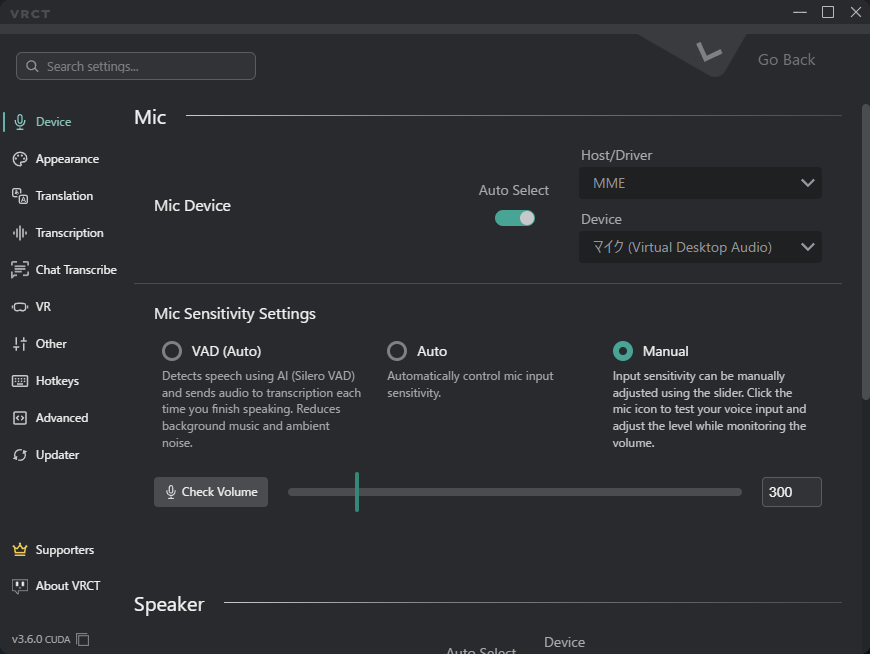
Search Settings
Use the search bar at the top of the Config Window to find a setting by name. Results show the tab each setting belongs to.
Device Tab
Manage your audio input and output devices, including the mic sensitivity mode (VAD, Auto, or Manual).
Refer to the Device Tab page for more details.
Appearance Tab
Customize the look and feel of the application.
Refer to the Appearance Tab page for more details.
Translation Tab
Configure the translation engines. The tab is grouped into AI Translation (Local), External Translation API, and Local LLM & Compatible Server.
Refer to the Translation Tab page for more details.
Transcription Tab
Configure the transcription engines.
Refer to the Transcription Tab page for more details.
Chat Transcribe Tab
Configure how VRCT reads VRChat chat bubbles on screen: the source language, capture target, and recognition thresholds.
Refer to the Chat Transcribe Tab page for more details.
VR Tab
Configure VR-related settings, including the subtitle overlays and the VR UI (Beta).
Refer to the VR Tab page for more details.
Other Tab
Configure other miscellaneous settings.
Refer to the Other Tab page for more details.
HotKeys Tab
Configure keyboard shortcuts for various actions in VRCT.
Refer to the HotKeys Tab page for more details.
Advanced Tab
Advanced configuration options for VRCT, including the WebSocket server.
Refer to the Advanced Tab page for more details.
Updater Tab
Check for updates, choose a release channel and CPU or GPU build, and install a specific version.
Refer to the Updater Tab page for more details.