Send Message with Translation
This guide will walk you through the process of sending messages with translation in VRCT.
Step 1: Enable translation features.
In the main window of VRCT, switch the "Translation" toggle to on.

If you do not enable the translation feature, messages will be sent without translation.
Step 2: Send a message.
There are two ways to send a message.
-
Using the chat input field
You can send a message by typing it into the chat input field in the main window of VRCT and pressing the Enter key (or Send button).

-
Using the microphone
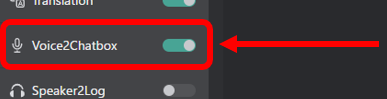
You can also send a message using your voice with the microphone. VRCT will recognize your speech, convert it to text, and send it.
 tip
tipBefore sending a message, make sure the microphone and speaker you want to use are correctly selected in the VRCT settings.
-
Check the sent message
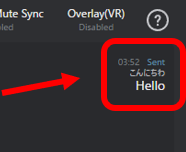
After sending the message, you can check it in the chat history area of the main window. The translated message will be displayed along with the original message.