Editing
Moving the cursor
| To | Do this |
|---|---|
| Move one character | ◀ ▶ (hold to keep moving) |
| Move one word | Ctrl, then ◀ ▶ |
| Put it anywhere | Press that spot in the text field |
| Select | Shift, then ◀ ▶ |
Deleting
| To | Do this |
|---|---|
| Delete one character | ← (hold to keep deleting) |
| Clear everything | Press the "×" at the right of the text field twice in a row |
The first press of "×" only changes its color, so a mistaken press doesn't erase anything.
Copy, paste and undo
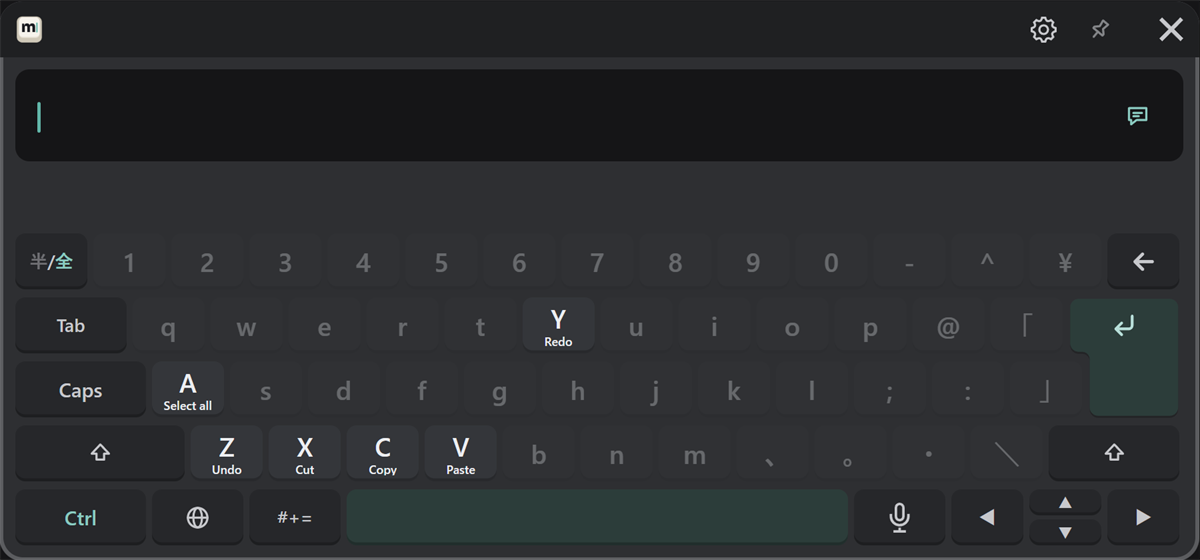
After you press Ctrl, only the keys you can use stay bright, with their action shown. Then press that key.
| Keys | Action |
|---|---|
| Ctrl → A | Select all |
| Ctrl → C | Copy |
| Ctrl → X | Cut |
| Ctrl → V | Paste |
| Ctrl → Z | Undo |
| Ctrl → Y | Redo |
The same actions are also buttons on the "#+=" → "Phrases" page (see Symbols, emoji and phrases).
Shift and Ctrl apply to the next key only when pressed once, and lock when pressed twice quickly. Press again while locked to unlock.
New lines
Press Shift, then ↵, to start a new line without sending.
Recalling sent messages
Press ▲ to bring a message you sent before back into the text field. Press again for older ones, and ▼ to go back to newer ones. Use it to send the same message again, or to fix a message slightly and send it again.
Length
VRChat's chatbox shows up to 144 characters. When you are close to the limit, the character count appears at the right of the text field.