VRC Mute Sync
VRC Mute Sync automatically synchronizes the microphone mute status between VRChat and VRCT, ensuring both applications stay in sync when you mute or unmute.
Overview
When enabled, VRC Mute Sync:
- Detects when you mute/unmute in VRChat
- Automatically mutes/unmutes VRCT transcription
- Prevents sending transcribed text when muted in VRChat
- Keeps both applications in sync
This ensures you don't accidentally send transcribed messages when you think you're muted.
How to Enable
Enable Sync
Method 1: Main Window
- In the top bar of the main window, locate the VRC Mute Sync button
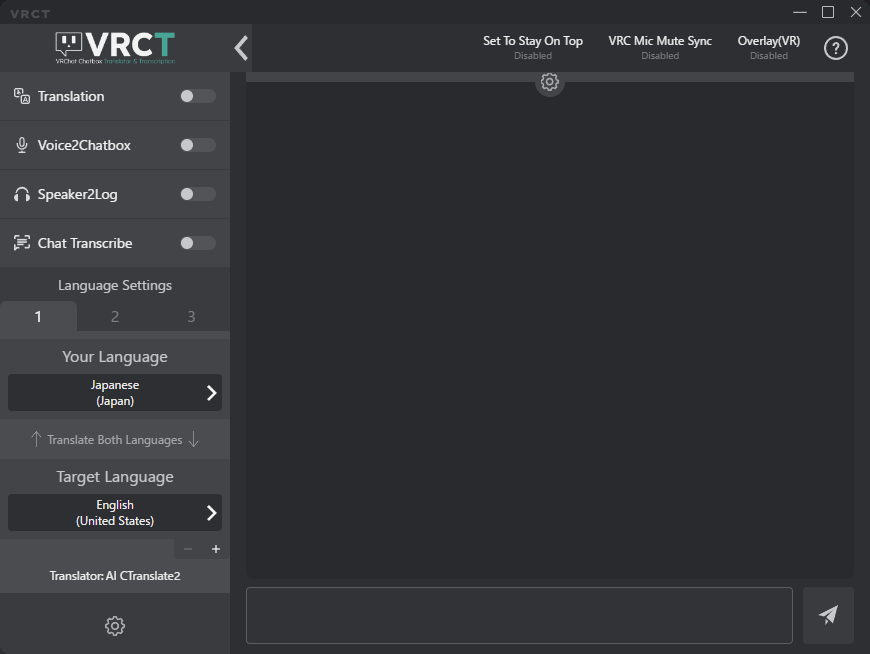
- Click it to switch sync on. Click it again to switch sync off. No pop-up opens.
- VRCT will now monitor VRChat's mute status
Method 2: Config Window
- In config window, locate the VRC Mic Mute Sync checkbox (Other Tab)

- VRCT will now monitor VRChat's mute status
How It Works
Detection
VRC Mute Sync monitors VRChat's mute status through:
- OSC parameters
- VRChat avatar parameters
When you mute or unmute in VRChat, VRCT detects the change almost instantly.
Synchronization
When you mute in VRChat:
- VRChat sends mute status via OSC
- VRCT detects the status change
- VRCT automatically disables Voice2Chatbox
- No transcribed text is sent while muted
When you unmute in VRChat:
- VRChat sends unmute status
- VRCT detects the change
- VRCT automatically re-enables Voice2Chatbox
- Transcription resumes
Use Cases
Privacy Protection
Prevent accidentally sending transcribed text when you think you're muted:
- Muted for private conversations
- Muted during breaks
- Muted in inappropriate situations
Troubleshooting
Sync Not Working
Check OSC Configuration:
- Ensure VRChat OSC is enabled
- Verify OSC port settings match
- Reset OSC config in VRChat
Verify VRCT Settings:
- VRC Mute Sync is enabled
- Correct sync mode selected
Restart Applications:
- Close both VRChat and VRCT
- Start VRChat and VRCT in either order
- Enable OSC in VRChat
- If VRCT was started before VRChat, switch to a different avatar in VRChat once so that the two stay in sync.
Delayed Sync
- Adjust sync delay settings
- Check system performance (CPU usage)
- Verify network/OSC latency is minimal
- Reduce other application load
False Triggers
If mute sync triggers incorrectly:
- Increase sync delay
- Check for OSC parameter conflicts
- Verify avatar mute parameter is standard
One-Way Sync Only
If bidirectional sync doesn't work:
- Ensure both applications support two-way OSC
- Check OSC parameter permissions
- May require custom avatar setup
Limitations
OSC Dependency
- Requires VRChat OSC to be enabled
- Network/firewall issues can affect sync
- Local OSC communication only
Detection Accuracy
- Sync may not be instant (slight delay)
- False positives/negatives possible
- Depends on OSC message reliability
Privacy & Security
Local Communication
- Sync uses local OSC only (127.0.0.1)
- No external network communication
- Safe and secure
Related Features
- Voice to Text - Microphone transcription
- OSC Integration - Learn about OSC
- Other Settings - Additional sync options
- Advanced Settings - Custom OSC parameters