The basics
Have SteamVR, OBS Studio and OverRec running. You are ready when, at the bottom right of the PC settings window, OBS says "Connected" and SteamVR says "Linked".
Showing the panel
Turn your left wrist toward your face, as if looking at a watch. The panel appears on the wrist. Turn the wrist away and it goes.
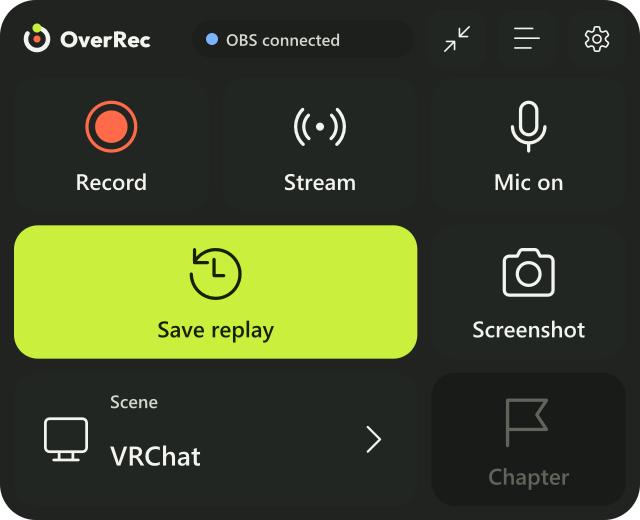
To wear it on the right hand, change it from the panel's gear (Which hand).
Pressing a button
Point at a button with the other hand's controller (the right hand by default), then pull the trigger and let go.
- A white dot shows where you are pointing.
- The button is pressed when you let go on it. Move off the button before letting go and it is not pressed.
- Stopping a recording or a stream takes a second press to confirm (so a slip does not stop it).
Each button is explained in The panel's buttons.
Grabbing and moving the panel
Point at the panel with the right hand and squeeze the grip to grab it.
| To | Do this |
|---|---|
| Move it | Move your hand while squeezing the grip |
| Move it nearer or further | While holding it, tilt the stick up or down |
| Resize it | While holding it, pull the trigger too: push your hand forward to enlarge, pull back to shrink |
| Leave it there | Let go of the grip |
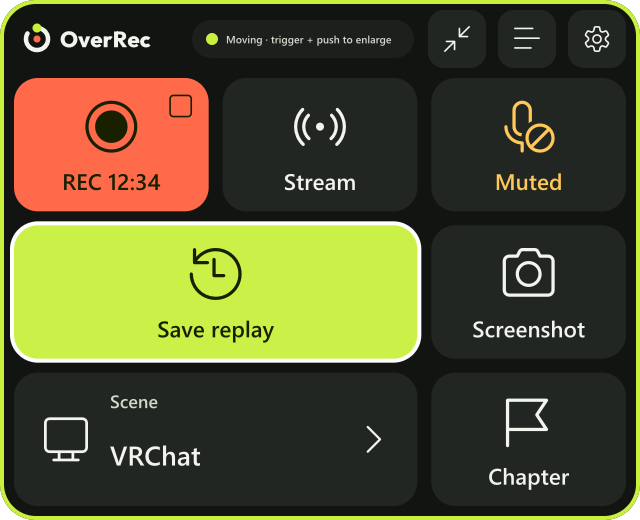
Where you leave it is remembered relative to the wrist. Left far from the wrist, it goes back to its place on the wrist. If you lose it, Back to wrist puts it back at its first place and size.
When the game reacts to presses on the panel
To keep the trigger that presses the panel from reaching the game, turn on "Enable global input from overlays" in SteamVR's settings. OverRec works without it, but the trigger that presses the panel reaches the game too.
Quitting
Right-click OverRec's icon in the Windows system tray and choose "Quit". If you cannot see the icon, press "^" at the right end of the taskbar.